Background
The Support team uses Seq alerts to receive updates on client data feeds. These alerts are configured against existing dashboard charts in Seq.
Before You Create an Alert (Pre‑checks)
Before setting up a new alert, confirm that the target dashboard chart requires an alert and that one doesn’t already exist.
Typical charts that warrant alerts include:
- HL7 data processing
- Flat file data processing (Census and ED)
- Oculys Uploader (service and queues)
- Incoming backlog
Check for existing alerts first:
- In Seq, navigate to Alerts.
- Use the Search bar to look up the exact name of the dashboard chart.
- If an alert already exists for that chart, review or update it instead of creating a duplicate.
Creating the alert
steps
1. Open the target chart
- Navigate to the dashboard tile you want to monitor.
- Expand the chart to reveal its options.

2. Create a new alert
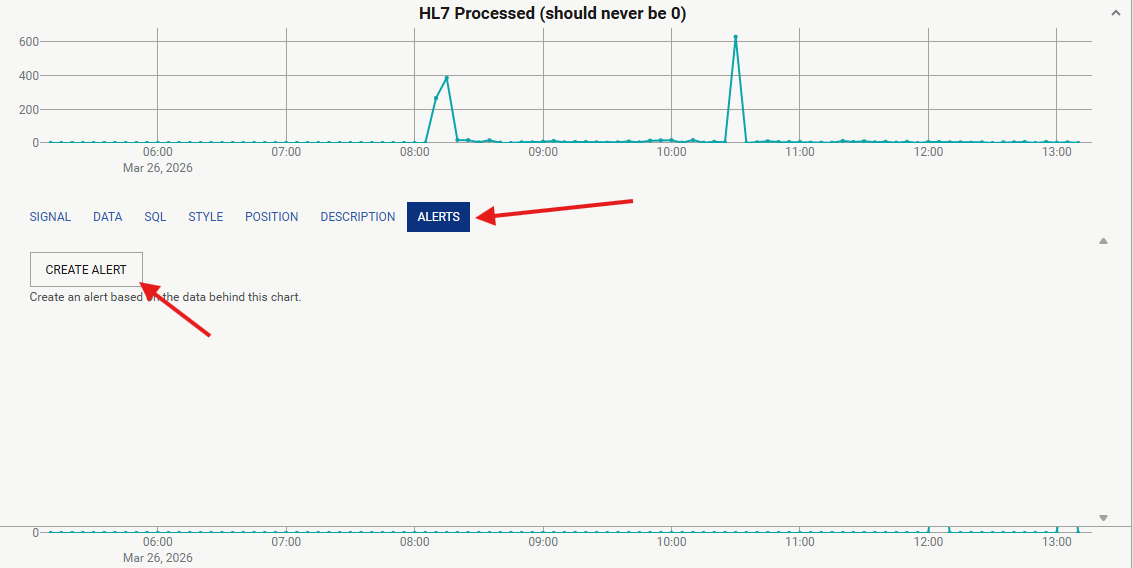
- Go to the chart’s Alerts section.
- Click Create alert.
3. Name the alert
- Use the format:
<ClientName> <Alert description>
Example:WRHN-QB not receiving HL7 - The client's name must come first.

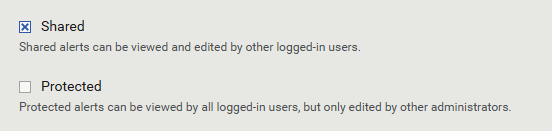
4. Set visibility
- Enable: Shared
- Do not enable: Protected
5. Configure the trigger
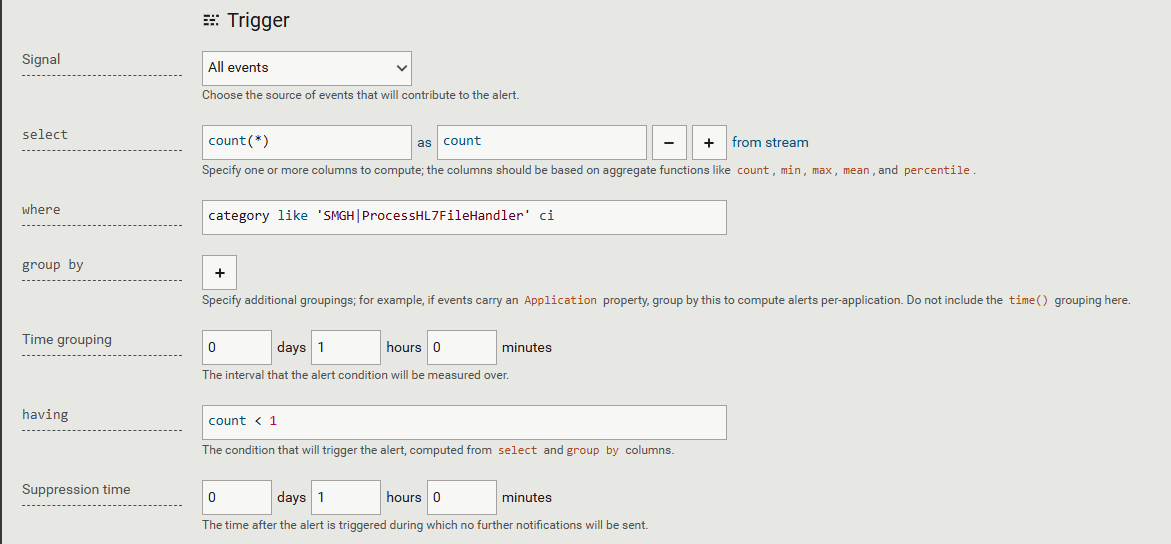
- Use an existing alert in the same category (HL7, Flat file—Census/ED, Oculys Uploader, Incoming backlog) as a reference for thresholds and timing.
- In most cases, Signal, Select, and Where are pre-filled from the chart.
- You typically need to set:
- Time grouping (e.g., the aggregation window)
- HAVING clause (threshold/condition to trigger the alert)
- Suppression time (cooldown period to prevent alert spam)
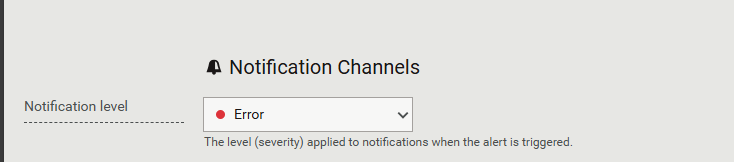
6. Choose the alert type
- Set Alert Type to Error (this is the usual choice).
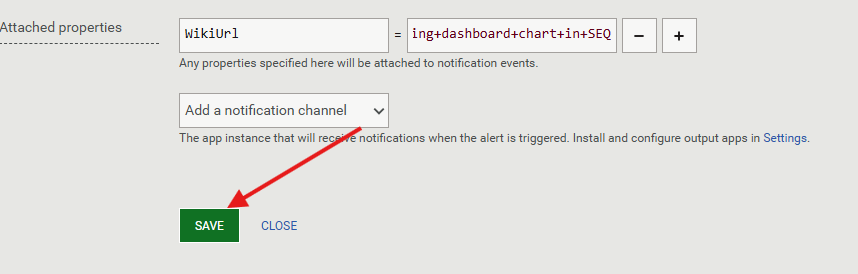
7. Attach wiki article on resolution steps (if available)
- Under Attach properties, click the “+” icon.
- Paste the URL of the relevant wiki article that explains remediation steps.

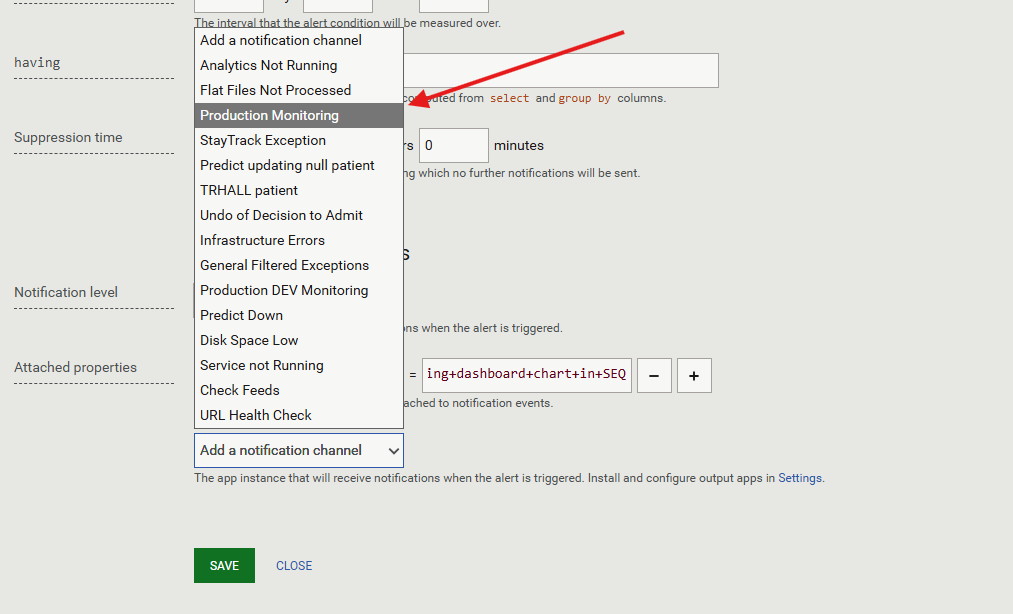
8. Configure notifications
- Set the Notification Channel to Production Monitoring so alerts route to Support Freshdesk.
9. Test the alert
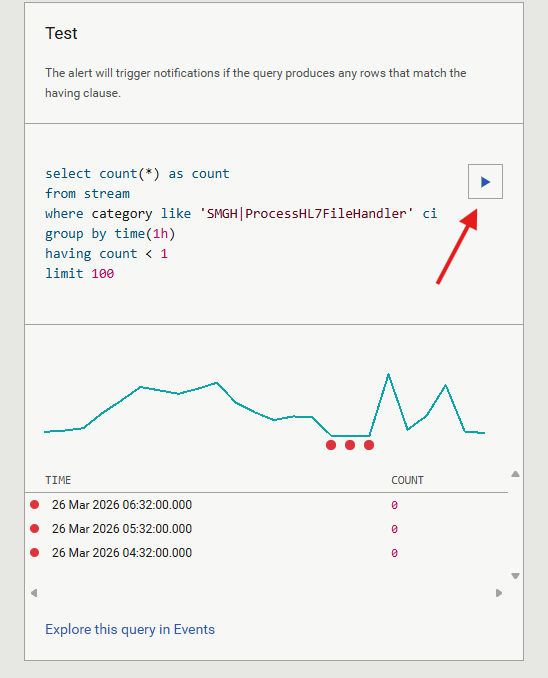
- In the alert editor, go to the Test section on the right side and press the Play (▶) button.
- The test will run.
- If there were instances where the alert could have triggered within the last few hours, they will show under the chart.
10. Save the alert
- Once the alert has been setup properly press the save button to save it