
Background
You receive alerts regarding Flat File processing, HL7 processing, and discrepancy‑related events through the alert configurations set up in Seq. All the alerts also have corresponding dashboard tiles. All support‑related alerts generated from Seq are automatically sent to Freshdesk
Viewing Alert History
The trigger history of seq alerts can be viewed from just entering the Alerts dashboard on seq, The left-hand side of the dashboard will show the trigger history
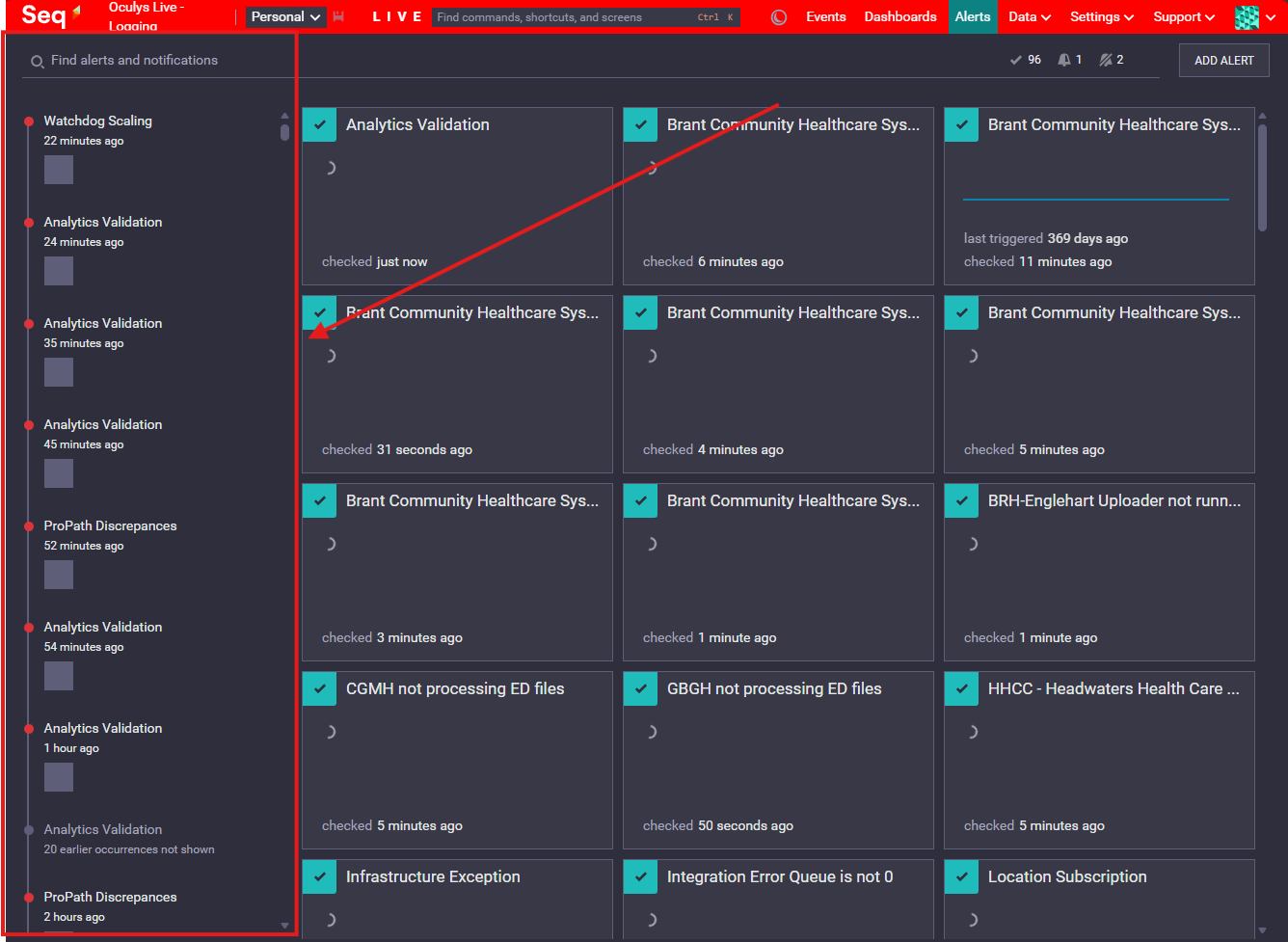
Note: Not all Errors that appears here are for the support team
Finding Alert Destination
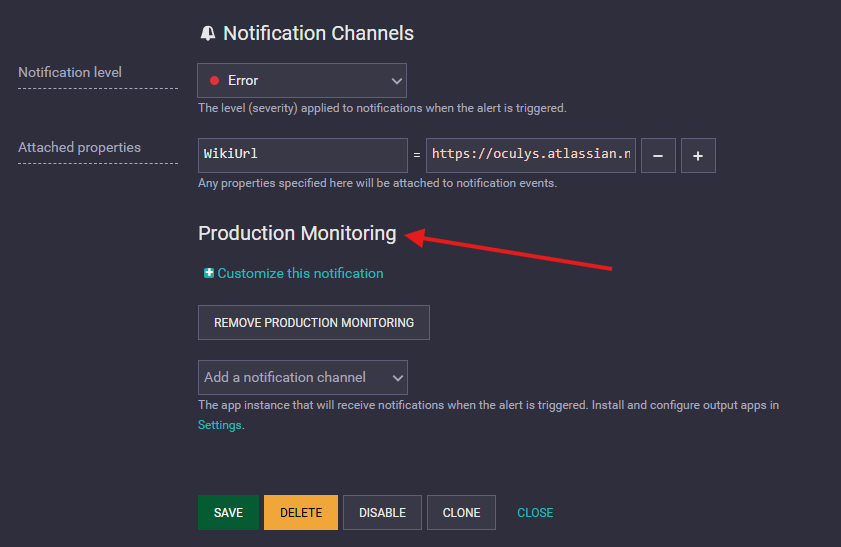
To identify where a specific alert is being sent, simply click on the alert within the Seq Alerts dashboard. This will open the alert’s configuration details, where when you scroll down to almost the end of the configuration page you can a section for Notification Channels
If the alert notification channel is set to Production Monitoring that means the alert is supported to be received to the Support Freshdesk.
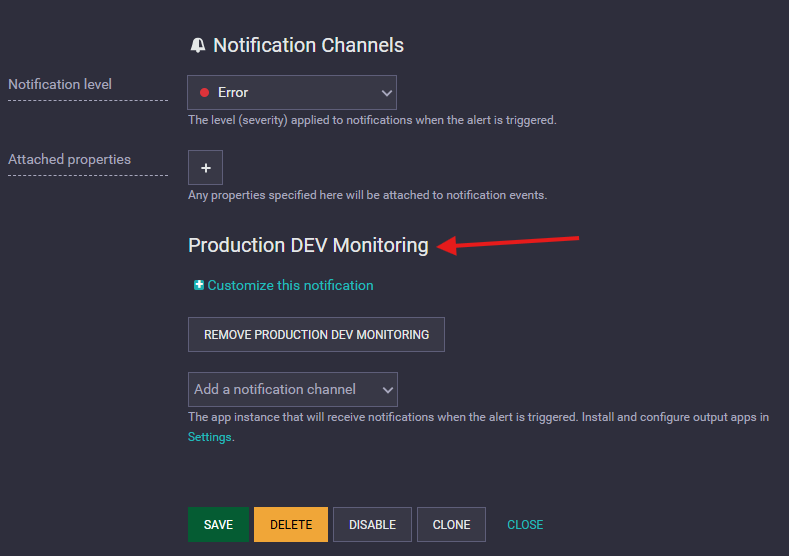
If the alert is notification channel is set to Production DEV Monitoring, it will be sent to the development team
Managing Alert Intervals
Most alerts configured under Production Monitoring, specifically those directed to the Support team are set with an interval of 30 minutes to 1 hour. This means that if the alert’s trigger conditions continue to be met within the defined grouping period, the alert will be sent again to ensure ongoing visibility of the issue.
However, in situations where the Support team has already taken action but cannot immediately resolve the issue, such as when a fix is pending from Development or the customer you can choose to increase the alert interval. This helps prevent unnecessary repeated notifications and reduces the time spent managing alerts in Freshdesk.
You can simply increase the Suppression Time in the required alerts configuration.
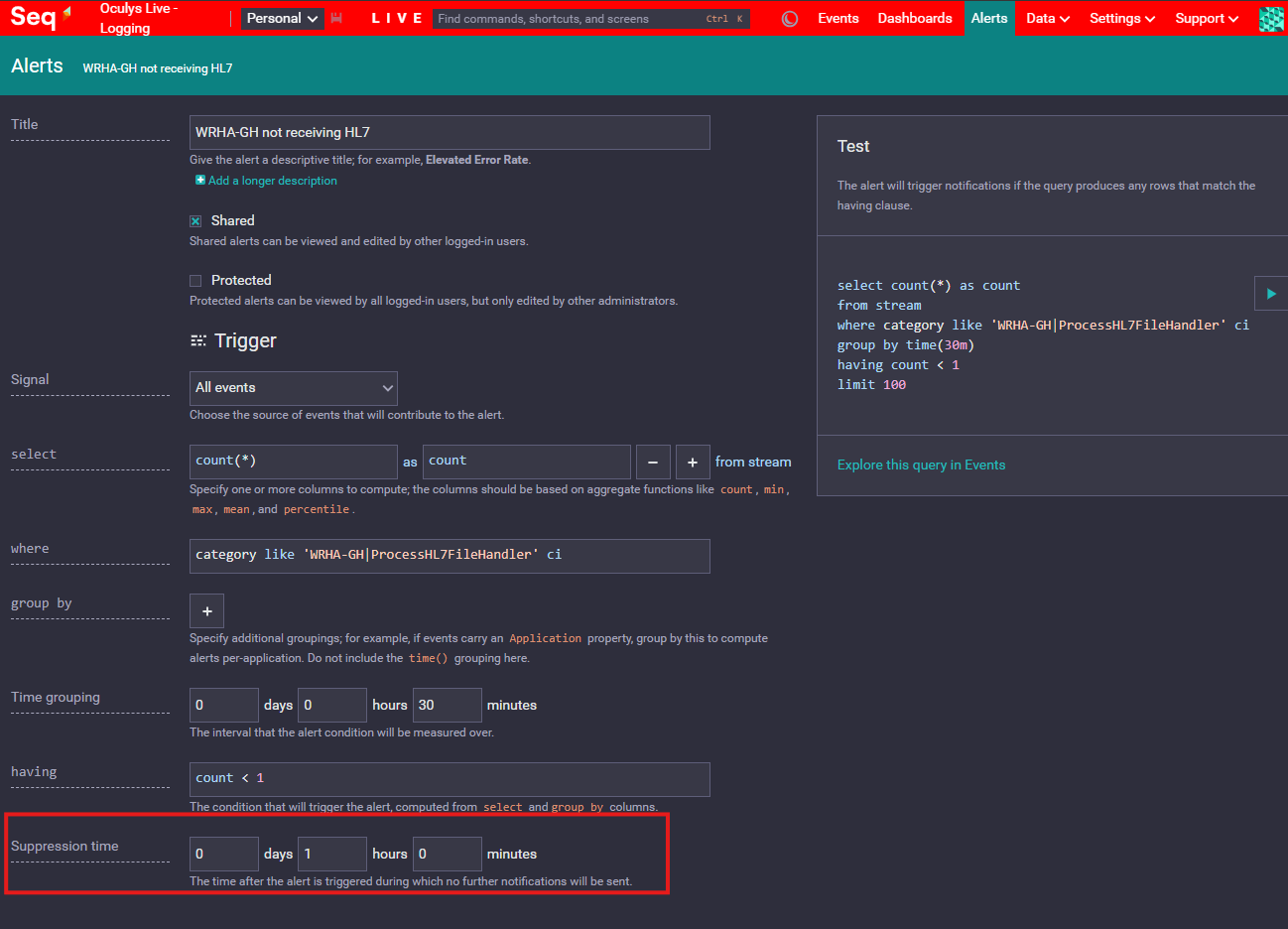
in the above screenshot, once the alert has been triggered, it will only trigger again after 1 our if the conditions are met within the last 30 mins (Time Grouping)
Make sure to inform the team on the Oculys Support Team channel before making this change.